On this page 13 sections
Every encoder asks you to choose a rate control mode, and the choice usually comes down to CBR vs VBR. Pick the wrong one and you either waste bandwidth or get blocky pictures in exactly the scenes people care about. The good news is that the rule of thumb is simple, once you understand what each mode is trying to do.
This guide explains how constant and variable bitrate work, where each one shines, what “capped” or “constrained” VBR means, and exactly what to choose for live streams, streaming libraries and files.
The problem both modes are solving
Video is not evenly difficult. A presenter against a plain wall barely changes from frame to frame. A crowd at a football match, confetti, fast camera pans or film grain change constantly. If you give every second the same number of bits, some seconds get more than they need and others get far too little.
Rate control is the encoder’s strategy for handing out bits over time. There are two broad philosophies.
CBR: constant bitrate
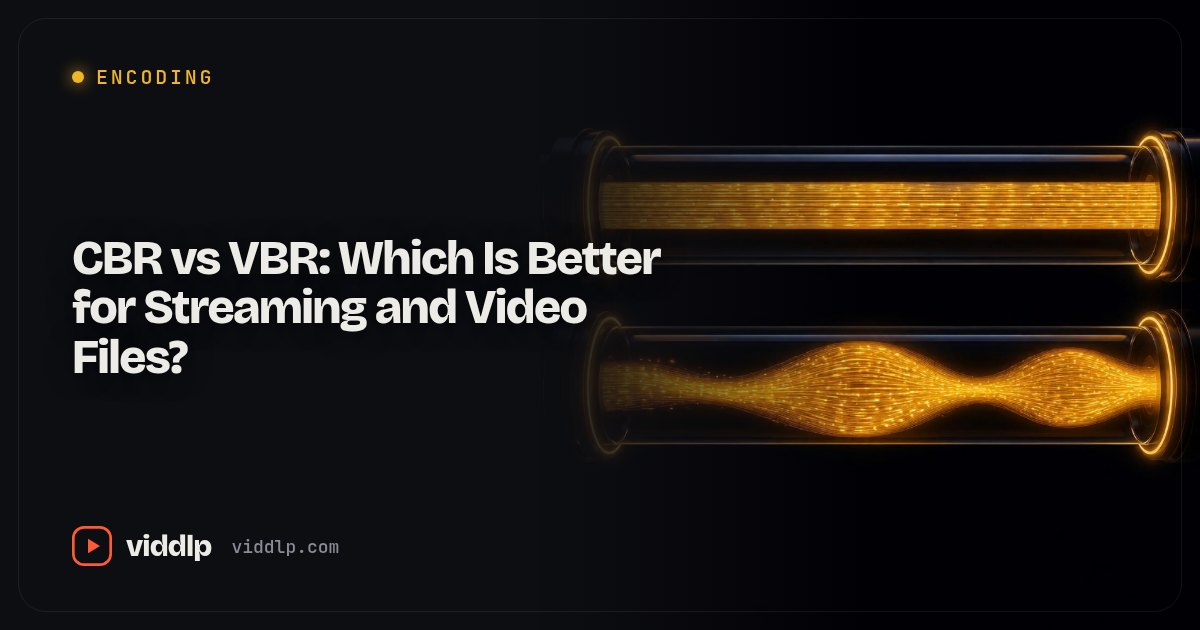
With CBR, the encoder aims to spend the same number of bits every second. Easy scenes and hard scenes get roughly the same budget. If a quiet scene needs less, the encoder may even pad the stream with filler data to keep the rate flat.
What it is good at
- Predictability. A 6 Mbps CBR stream really is close to 6 Mbps, all the time. Networks and servers can plan around that.
- Live ingest. Your upload connection has a fixed ceiling. A steady stream is far less likely to overflow it and cause dropped frames.
- Broadcast and hardware chains that expect a constant data rate.
What it costs
- Wasted bits on easy scenes.
- Starved bits on hard scenes, so complex moments can look blocky.
- Bigger files than necessary for a given visual quality.
VBR: variable bitrate
With VBR, the encoder moves bits around. Simple scenes get fewer, complex scenes get more, and the average over the whole video lands near your target.
Single-pass VBR decides on the fly. It is fast and suits situations where you cannot look ahead.
Two-pass VBR analyses the whole file first, then encodes. Because it knows where the hard scenes are, it spreads bits more wisely and hits the average almost exactly. It takes roughly twice as long.
What it is good at
- Better quality at the same average bitrate, often noticeably so on mixed content.
- Smaller files for the same look.
- Exports and uploads where predictability second by second does not matter.
What it costs
- Spikes. Uncapped VBR can briefly jump far above the average. On a live connection, those spikes cause dropped frames. In streaming, they can stall a viewer whose connection was chosen for the average.
Constrained VBR: the middle path
Streaming platforms want VBR’s efficiency without its spikes. The answer is constrained, or capped, VBR. You set a target, and also a maximum bitrate and a buffer size. The encoder varies the bitrate with the content but never exceeds the ceiling for longer than the buffer allows.
In FFmpeg with x264, that looks like:
-b:v 4500k -maxrate 5000k -bufsize 10000kThe buffer size is the key setting. It is the window, in bits, over which the encoder must stay under the maximum. A small buffer means a steadier, more CBR-like stream. A large buffer allows more variation, and better quality, but bigger short-term swings. For streaming renditions, a buffer of one to two times the maximum rate is a common choice.
A popular variant is capped CRF: use a quality target (CRF) instead of an average bitrate, plus a maximum and buffer. Easy content comes out small, hard content is capped. It is simple and works very well for on-demand libraries. Our bitrate explainer covers CRF itself in more depth.
What to use, situation by situation
| Situation | Recommended mode |
|---|---|
| Live streaming to Twitch, YouTube, Facebook | CBR |
| Live output renditions from your own transcoder | Constrained VBR, small buffer |
| HLS / DASH on-demand renditions | Capped CRF or constrained two-pass VBR |
| Uploading to YouTube or Vimeo | High-quality VBR or CRF (the platform re-encodes) |
| Hitting an exact file size | Two-pass VBR |
| Archiving your own footage | CRF, no cap |
| Screen recordings and lectures | CRF or capped CRF |
Why live platforms insist on CBR
It comes down to your upload. Suppose you stream at 6 Mbps on a connection that sustains 9 Mbps. With CBR, you always have 3 Mbps of headroom. With uncapped VBR, a burst of confetti might briefly demand 12 Mbps. The upload cannot deliver it, the encoder’s output queue fills, and it starts dropping frames. Viewers see stutter at the most exciting moment.
Platforms also transcode your stream into several renditions in real time. A steady input makes that process more reliable. That is why the best OBS settings for streaming always start with CBR, and why you should check your headroom with our guide on upload speed for live streaming.
Why on-demand streaming prefers capped VBR
For a library that people watch later, the constraint is different. You want each rendition to look as good as possible within the bandwidth budget the player assumes. Uncapped VBR could produce a 1080p rendition that averages 5 Mbps but peaks at 15 Mbps, stalling viewers whose connection was measured at 7 Mbps. CBR would waste bits on every quiet scene. Capped VBR gets the best of both.
It also matters for your manifests. In HLS, the BANDWIDTH attribute should reflect each rendition’s peak. If VBR is uncapped, that peak can be far above the average, and players become overly cautious, choosing lower quality than they need to. Our encoding settings guide shows capped values for a full ladder.
A worked comparison
To make this concrete, imagine encoding a 10-minute clip that is half interview and half fast-moving sports footage, at an average of 4 Mbps.
- CBR at 4 Mbps: the interview looks excellent, even wasteful. The sports half is noticeably blocky in fast pans. File size: about 300 MB.
- Two-pass VBR at 4 Mbps average: the interview drops to around 2 Mbps with no visible loss, and the sports half rises to around 6 Mbps. Both halves look good. File size: still about 300 MB. Peaks might reach 9 or 10 Mbps.
- Capped VBR at 4 Mbps, max 5 Mbps, buffer 10 Mbps: similar to two-pass VBR in the interview, a little softer than uncapped VBR in the sports half, but never above 5 Mbps. Safe for streaming.
Same average bitrate, three different outcomes. Use the bitrate calculator to translate any of these numbers into file sizes for your own clips.
Common mistakes
Using CBR for files. You pay in file size and gain nothing.
Using uncapped VBR for live. Spikes turn into dropped frames.
Setting a huge buffer on streaming renditions. The stream becomes effectively uncapped over short periods.
Setting the maximum equal to the target with a tiny buffer. You have reinvented CBR, with its inefficiency.
Comparing modes at different bitrates. Always compare at the same average, or the result tells you nothing.
Hardware encoders
GPU encoders such as NVIDIA NVENC, Intel Quick Sync and AMD AMF offer the same ideas under slightly different names: CBR, VBR, and a quality mode often called CQ or ICQ. For live streaming, CBR remains the recommendation. For recordings and exports, a quality mode with a sensible maximum gives the best results. Check your encoder’s documentation for how it treats buffer size, since defaults vary.
How to test it on your own footage
The quickest way to see the difference is to encode a short, varied clip twice. Pick two minutes that include both calm and busy moments. Encode once with CBR and once with two-pass VBR at the same average bitrate, using the same codec and preset. Then open both files side by side and pause on the busiest frame you can find. Look at faces, edges and textures such as grass or hair. In most clips the VBR version holds detail better in the busy scenes, while the calm scenes look identical.
Next, look at the bitrate over time. Tools such as Bitrate Viewer, or FFmpeg’s ffprobe with packet sizes plotted in a spreadsheet, show how flat the CBR file is and how the VBR file rises and falls with the action. That graph is the whole concept in one picture.
If you are preparing streaming renditions, repeat the test with capped VBR and check that the peaks stay under your cap. Then play the result in the HLS player on a throttled connection. A rendition that plays smoothly at a connection just above its maximum rate is a rendition you can trust. For the bigger picture on how these choices fit a full ladder, see adaptive bitrate streaming explained.
The one-line answer
Live? CBR. Files and on-demand streaming? VBR, capped if people will stream it. That rule will be right far more often than it is wrong.
Summary
CBR keeps the bitrate flat, which makes it the right choice for live ingest and anything that needs predictable bandwidth. VBR moves bits to where they are needed, giving better quality or smaller files for exports and uploads. For streaming libraries, constrained or capped VBR, including capped CRF, combines VBR’s efficiency with a safe ceiling. Match the mode to the job, compare at equal bitrates, and you will get noticeably better video without spending a single extra bit.
Frequently asked questions
Should I use CBR or VBR in OBS?
CBR. Twitch, YouTube and most live platforms recommend constant bitrate for ingest because it keeps the upload steady and predictable.
Is VBR better quality than CBR?
At the same average bitrate, VBR usually looks better, because it spends more bits on complex scenes and fewer on simple ones.
What is constrained or capped VBR?
VBR with a maximum bitrate and buffer size. It adapts to the content like VBR but never exceeds a ceiling, which makes it suitable for streaming renditions.


